

Vault
What Is a Vault?
Section titled “What Is a Vault?”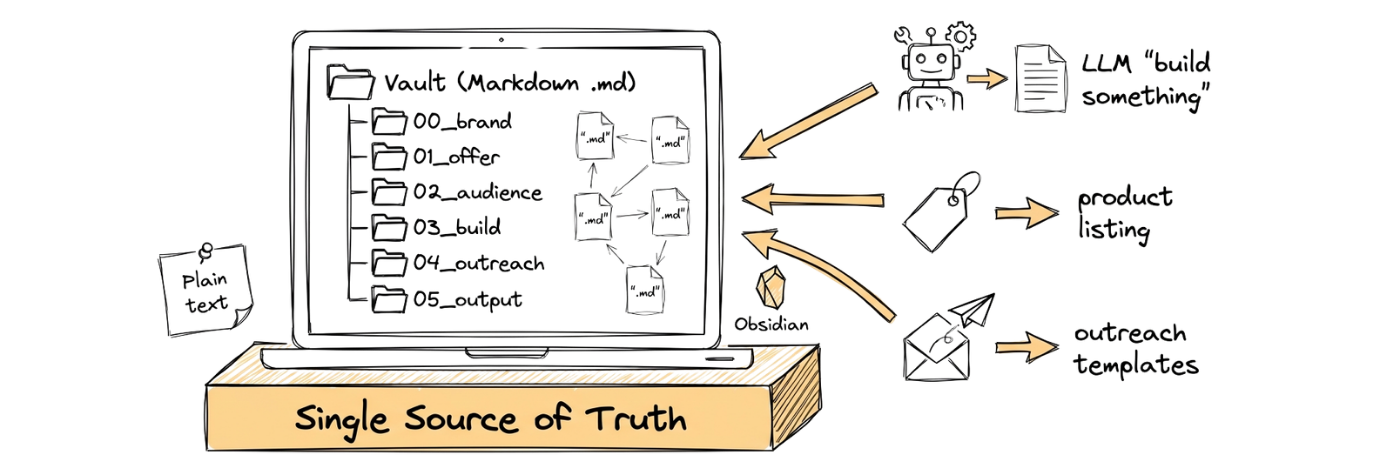
A vault is a folder of text files. That is it.
Specifically, it is a collection of markdown files organised into folders with a consistent structure. Markdown is a simple formatting language. If you have ever put asterisks around a word to make it bold, you have used markdown. Every file in the vault is a plain text file with a .md extension.
We use Obsidian to manage the vault. Obsidian is a free application that makes markdown files easy to create, search, link, and browse. It runs on Mac, Windows, Linux, and mobile. Your files live on your computer, not in someone else’s cloud.
Why does any of this matter? Because every piece of your project (the offer definition, the audience profile, the app spec, the outreach messages) starts as a file in a vault. The vault is the single source of truth. When you ask your LLM to build something, you point it at files in the vault. When you write a product listing, you pull copy from the vault. When you reach out to early adopters, the message templates live in the vault.
Nothing gets lost. Everything connects. And because it is all plain text, every AI tool on the market can read it.
Why Markdown?
Section titled “Why Markdown?”You could use Notion. Or Google Docs. Or Word. But markdown has three properties that matter for the VOSS framework.
- It is universal. Claude Code reads markdown. OpenAI reads markdown. Gemini reads markdown. Your vault works regardless of which AI tool you choose. No format conversion. No copy-pasting between tools.
- It is portable. Your files are yours. If Obsidian disappeared tomorrow, your vault would still work. Open the files in VS Code, Warp, or a plain text editor. They are just text.
- It is fast. No loading spinners. No sync delays. No “this document is too large to display.” Markdown files open instantly, even on older machines.
The tradeoff is that markdown is not as visually polished as a Word document or a Notion page. You will not get drag-and-drop columns or embedded databases. For building with LLMs, that tradeoff is worth it. You want speed and compatibility, not pretty layouts.
Download Obsidian
Section titled “Download Obsidian”Download Obsidian
Download from obsidian.md/download and drag the app into your Applications folder. Open it once to complete the initial setup.
Download from obsidian.md/download and run the installer. Follow the prompts and open Obsidian once installation is complete.
If you run into trouble during installation, paste the error message into your LLM and ask it to help you fix it.
Step 0: Open Your Terminal and Start Your AI Tool
Section titled “Step 0: Open Your Terminal and Start Your AI Tool”Before you can run any prompts, you need a terminal open and an AI coding tool running.
- Open a terminal. If you have not used a terminal before, follow the Using the Terminal guide.
- Navigate to the folder where you want your project to live:
cd ~/Documents
- Start your AI coding tool. Type the command for whichever tool you have installed:
claude # Claude Codegemini # Gemini CLIcodex # Codex
If you have not installed a tool yet, pick one from the Tool Setup Guides and follow the instructions there.
Once your tool is running and waiting for input, continue to Step 1.
Step 1: Obsidian Orientation
Section titled “Step 1: Obsidian Orientation”If this is your first time using Obsidian, take a few minutes to get oriented.
Obsidian: Key Features & How It Works

Obsidian is a local-first Markdown knowledge base. Everything lives
as plain .md files in a folder on your machine (called a vault). No
cloud lock-in, no proprietary format.

Core Concepts

Vault = a folder on your filesystem. When you open Obsidian, you
point it at a folder. That folder (and all subfolders) becomes your
vault.

Notes = Markdown files. Each note is a .md file you can open in any
text editor. Obsidian just gives you a nice UI on top.

Links = the power feature. You connect notes using [[double
brackets]]:

- [[Meeting Notes]] links to a note called "Meeting Notes"
- [[Projects/Launch Plan]] links to a note in a subfolder
- Links create a web of connected knowledge, not just a file tree

Key Features to Explore

1. Editor
 - Live preview mode (rendered Markdown as you type)
 - Source mode (raw Markdown)
 - Supports headings, bold, italic, lists, code blocks, tables,
   callouts

2. Backlinks
 - Every note shows what other notes link to it
 - This is how you discover connections you didn't plan

3. Graph View
 - Visual map of all your notes and their connections
 - Useful for spotting clusters and orphan notes

4. File Explorer (left sidebar)
 - Standard folder/file tree
 - Drag and drop to reorganise
 - Right-click to create notes, folders, rename

5. Search
 - Full-text search across all notes
 - Supports regex and filters (path:, tag:, file:)

6. Tags
 - Add #tag-name anywhere in a note
 - Tags are searchable and filterable
 - Good for status tracking (#draft, #complete)

7. Templates
 - Create template notes in a designated folder
 - Insert them into new notes with a hotkey
 - Great for consistent structure (meeting notes, project briefs)

8. Properties (Frontmatter)
 - YAML metadata at the top of a note:
   title: My Note
   date: 2026-02-21
   status: draft
 - Searchable and sortable

9. Command Palette
 - Press Cmd+P (Mac) to access every action
 - Faster than clicking through menus

10. Community Plugins
  - Hundreds of plugins available (Kanban boards, calendars,
    dataview queries)
  - Enable via Settings > Community Plugins

Quick Start Workflow

1. Create a vault (pick a folder, or let Obsidian create one)
2. Make your first note (Cmd+N)
3. Create a few more notes and link them with [[brackets]]
4. Open Graph View (Cmd+P > "Graph view") to see connections
5. Set up a Templates folder in Settings > Core Plugins > Templates

Things Worth Knowing

- Everything is local. No account needed. No server. Your files,
your machine.
- Portable. The vault is just a folder of .md files. Move it
anywhere, open it with anything.
- Sync is optional. You can use Obsidian Sync (paid), iCloud,
Dropbox, or Git.
- The folder structure matters. Organise folders intentionally as
your vault grows.
LLM outputs are non-deterministic and may vary from this example.
Step 2: Create the Vault
Section titled “Step 2: Create the Vault”Your vault name should reflect your project. Something descriptive like [your-project-name] works well.
Step 1: Create a Vault

When you first open Obsidian, you'll see a vault picker screen with
two options:

1. "Create new vault" - click this one
2. Give it a name (e.g. my-project or coengineers-project)
3. Choose a location on your machine (your Documents folder works
 fine)
4. Click Create

Obsidian will create the folder and open it as your workspace.

Step 2: Create Your First Note

Once the vault is open:

1. Press Cmd+N (Mac) to create a new note
2. Click on the title area at the top and type a name, e.g.
 Hello World
3. In the body, type some Markdown:

 # My First Note

 This is my first note in Obsidian.

 ## Things I want to learn
 - How to link notes together
 - How to organise my vault
 - How to use templates

4. The file saves automatically. No save button needed.

Step 3: Create a Second Note and Link Them

1. Press Cmd+N again
2. Name it Learning Plan
3. In the body, type:

 # Learning Plan

 I started my vault today. See my [[Hello World]] note for first
 impressions.

The [[Hello World]] text becomes a clickable link. Click it and it
takes you back to your first note.

Step 4: Check the Graph View

1. Press Cmd+P to open the Command Palette
2. Type graph and select "Graph view: Open graph view"
3. You'll see two dots (your two notes) connected by a line

That's it. You've got a working vault with linked notes.
LLM outputs are non-deterministic and may vary from this example.
The 6-Folder Structure
Section titled “The 6-Folder Structure”Every CoEngineers vault uses the same canonical 6-folder structure. Six folders cover everything. The numbered prefix on each folder name ensures they sort correctly and gives you a consistent convention to reference in prompts.
| Folder | VOSS Stage | Purpose |
|---|---|---|
00_brand/ | Foundation | Brand identity, tone of voice, AI blocklist |
01_offer/ | Offer | Product definition, pricing, value equation |
02_audience/ | Offer | Ideal customer profile |
03_build/ | Ship | Technical specs, PRD |
04_outreach/ | Scale | Message templates, follow-up sequences |
05_output/ | All | Where generated content lands |
What Goes Where
Section titled “What Goes Where”00_brand holds your voice guidelines. How do you want to sound? What words do you avoid? A short paragraph about your tone is enough for a personal project. For a business, you might have a full tone of voice document.
01_offer holds everything about the offer. Your Value Equation scoring, your naming options, your product listing copy. This folder answers “what am I selling and why?”
02_audience holds your target avatar. Who is this for? What do they care about? What are their frustrations? Even a half-page sketch of your ideal customer is better than nothing.
03_build holds the technical specs. A PRD (Product Requirements Document) describes what your app does, screen by screen. You specify what you want, plan the approach, break it into tasks, then implement.
04_outreach holds your sales materials. Warm outreach messages. Follow-up templates. The scripts you will use when you reach out to potential customers.
05_output holds the things you produce. Offer templates, social media posts, compiled project plans. Anything that leaves the vault and goes to the outside world starts here.
Step 3: Create the Folder Structure
Section titled “Step 3: Create the Folder Structure”Done. I've created all six folders at the root of your vault. Your file explorer in Obsidian's left sidebar should now show: [your-project-name]/ ├── 00_brand/ ├── 01_offer/ ├── 02_audience/ ├── 03_build/ ├── 04_outreach/ └── 05_output/ The numbered prefixes (00 through 05) ensure the folders always sort in the correct order, regardless of which file explorer you use. Each folder maps to a stage of the VOSS framework: Folder Stage What goes here 00_brand/ Foundation Brand identity, tone of voice, AI blocklist 01_offer/ Offer Product definition, pricing, value equation 02_audience/ Offer Ideal customer profile 03_build/ Ship Technical specs, PRD 04_outreach/ Scale Message templates, follow-up sequences 05_output/ All stages Where generated content lands All six folders are empty for now. In the next step, you'll populate them with the required files and placeholder content.
LLM outputs are non-deterministic and may vary from this example.
Step 4: Create Files with Placeholder Text
Section titled “Step 4: Create Files with Placeholder Text”Now populate the vault with its required files. These foundational documents give your LLM the context it needs to produce personalised, on-brand outputs from the very first prompt in the Offer guide.
00_brand/

tone_of_voice.md - Created. Contains placeholder sections for brand
personality, tone attributes (e.g. formal vs casual, serious vs
playful), language preferences, vocabulary to favour, and "sounds
like / doesn't sound like" examples.

ai_blocklist.md - Created. Contains placeholder sections for banned
words, banned phrases, topics to avoid, formatting restrictions, and
style anti-patterns. Ready for you to fill in anything the AI should
never say on your behalf.

01_offer/

offer_definition.md - Created. Contains placeholder sections for
product name, format (ebook, course, template pack, etc.), target
buyer, the problem it solves, the transformation it delivers,
pricing, and what makes it different.

value_equation.md - Created as a placeholder. Contains a brief
description of its purpose: scoring your offer against Hormozi's
Value Equation (Dream Outcome, Perceived Likelihood of Achievement,
Time Delay, Effort & Sacrifice). This file will be completed in
the Offer guide.

gumroad_landing.md - Created as a placeholder. Contains a brief
description of its purpose: the full product listing copy for your
Gumroad page, including headline, subheadline, bullet points, FAQs,
and call to action. This file will be completed in the Offer guide.

02_audience/

target_avatar.md - Created. Contains placeholder sections for
demographics (age, role, income), psychographics (values, beliefs,
aspirations), current frustrations, failed alternatives they have
tried, buying triggers, and objections.

03_build/

app_prd.md - Created. Contains placeholder sections for product
overview, feature list, technical constraints, user stories,
acceptance criteria, and out-of-scope items.

04_outreach/

warm_messages.md - Created. Contains placeholder templates for
first-touch messages to warm contacts, with slots for
personalisation (name, shared context, specific compliment).

follow_up_templates.md - Created. Contains a placeholder 3-message
follow-up sequence with suggested timing (e.g. Day 3, Day 7,
Day 14) and tone guidance for each touchpoint.

05_output/

book_chapter_drafts/ - Subdirectory created. Empty, ready to
receive generated chapter content.

social_posts/ - Subdirectory created. Empty, ready to receive
generated social media content.

---

Your vault structure now looks like this:

[your-project-name]/
├── 00_brand/
│ ├── tone_of_voice.md
│ └── ai_blocklist.md
├── 01_offer/
│ ├── offer_definition.md
│ ├── value_equation.md <- placeholder
│ └── gumroad_landing.md <- placeholder
├── 02_audience/
│ └── target_avatar.md
├── 03_build/
│ └── app_prd.md
├── 04_outreach/
│ ├── warm_messages.md
│ └── follow_up_templates.md
└── 05_output/
├── book_chapter_drafts/
└── social_posts/

All 9 files contain placeholder content describing their purpose.
The next step is to replace that placeholder content with real
detail about your product, audience, and brand through an
interactive Q&A session.
LLM outputs are non-deterministic and may vary from this example.
Step 5: Complete Files with Interactive Q&A
Section titled “Step 5: Complete Files with Interactive Q&A”This is where your vault goes from placeholder content to real, usable detail. Instead of filling in each file manually, you will hand your LLM a brief and let it interview you.
Before starting, have the following ready in your head (or jotted down):
- Your product: what it is, what format it takes, what transformation it delivers
- Your audience: who it is for, their frustrations, what they have tried before
- Your brand voice: how you want to sound and any words or phrases to avoid
- Your pricing: what you plan to charge and why that price is fair
- Your story: why you are the right person to create this product
Let's get started. I'll work through this one topic at a time,
beginning with your product and audience since those answers will
inform everything else.

Topic 1: Your Product

1. What is your product? (e.g. an ebook, a course, a template
 pack, a software tool)
2. What is it called, or what working title are you using?
3. What specific problem does it solve for the buyer?
4. What transformation does someone experience after using it?
 (Where are they before vs. after?)
5. What format does it take and how is it delivered? (e.g. PDF
 download, video modules, live cohort, SaaS app)
6. What price point are you considering, and why does that feel
 right for what it delivers?

Take as much or as little space as you need. Once I have a clear
picture of the product, I'll move on to your audience.
LLM outputs are non-deterministic and may vary from this example.
The LLM will lead this conversation. Answer each question as thoroughly as you can. The more detail you provide, the better your vault files will be.
Step 6: Validate Your Vault
Section titled “Step 6: Validate Your Vault”The final step is to verify that your vault is set up correctly. The vault-validator skill will auto-activate when you mention validating your vault.
Here's your validation report:

═══════════════════════════════════════════════════
VAULT VALIDATION REPORT
═══════════════════════════════════════════════════

Vault: [your-project-name]
Path: [path-to-your-vault]
Date: 2026-02-21

───────────────────────────────────────────────────
STRUCTURE
───────────────────────────────────────────────────

Folders: 6/6 required folders present
Files: 9/9 required files present

No structural issues found.

───────────────────────────────────────────────────
METADATA
───────────────────────────────────────────────────

Files checked: 9
Files with valid metadata: 9
Files with issues: 0

No metadata issues found.

───────────────────────────────────────────────────
QUALITY
───────────────────────────────────────────────────

Empty files: 0
Naming issues: 0
Stale drafts: 0

No quality issues found.

───────────────────────────────────────────────────
RESULT
───────────────────────────────────────────────────

Errors: 0
Warnings: 0

PASS -- Vault is valid

═══════════════════════════════════════════════════

Your vault passes all six checks. All 6 folders are present, all
9 required files are in their correct locations, every file has
valid YAML frontmatter with the 5 required fields, no files are
empty, all names use snake_case, and no stale drafts (everything
was created today).

The two subdirectories (05_output/book_chapter_drafts/ and
05_output/social_posts/) are empty, which is expected at this
stage.

Your vault is ready. You can move on to the Offer guide to
complete value_equation.md and gumroad_landing.md.
LLM outputs are non-deterministic and may vary from this example.
The validator checks:
- All 6 folders exist with correct names
- All 9 required files are in place
- Every file has valid YAML frontmatter with the 5 required fields
- All filenames use snake_case
- No files are empty beyond their frontmatter
If anything fails, the report will tell you exactly what to fix.
Canonical Folder Structure
Section titled “Canonical Folder Structure”Here is the complete canonical vault structure for quick reference:
[your-project-name]/├── 00_brand/│ ├── tone_of_voice.md # Brand voice, style, and language rules│ └── ai_blocklist.md # Words, phrases, and topics the AI must avoid├── 01_offer/│ ├── offer_definition.md # What the product is, who it is for, and the transformation│ ├── value_equation.md # Hormozi Value Equation scoring and analysis│ └── gumroad_landing.md # Full product listing copy├── 02_audience/│ └── target_avatar.md # Ideal customer profile with demographics and triggers├── 03_build/│ └── app_prd.md # Product requirements, user stories, and acceptance criteria├── 04_outreach/│ ├── warm_messages.md # Personalised outreach message templates│ └── follow_up_templates.md # Structured follow-up sequence for non-replies└── 05_output/ ├── book_chapter_drafts/ # Generated book chapter content └── social_posts/ # Generated social media contentYour First Three Files
Section titled “Your First Three Files”Do not overthink this. If you want to skip the full interactive Q&A in Step 4 and start with something simpler, create three files manually.
1. target_avatar.md (in 02_audience/)
Write a paragraph about who your product is for. Not a detailed persona document. Just answer: who has this problem, and why would they care about solving it?
2. offer_definition.md (in 01_offer/)
Write a paragraph about the offer. Not the features. The change. What is different about the user’s life after they use your product?
3. app_prd.md (in 03_build/)
List the screens in your app and write one sentence about each. This becomes the spec that your LLM works from.
That is it. Three files. Maybe 20 minutes of work. But now you have an initial vault with structure. And when you open your LLM coding tool, you have context to give it.
Further Reading
Section titled “Further Reading”- Obsidian for downloading the app and browsing the help docs
- Markdown Guide for a free reference on markdown syntax
- @linkingyourthinking (Nick Milo) on YouTube for Obsidian video walkthroughs
What Comes Next
Section titled “What Comes Next”Your vault is now set up and validated. You have a clean 6-folder structure, 9 foundational documents with detailed content, and YAML frontmatter metadata on every file.
When you are ready, move on to the Offer guide to define your product, validate your idea with the Value Equation, and create a compelling offer using the vault you just built.